See where your space goes
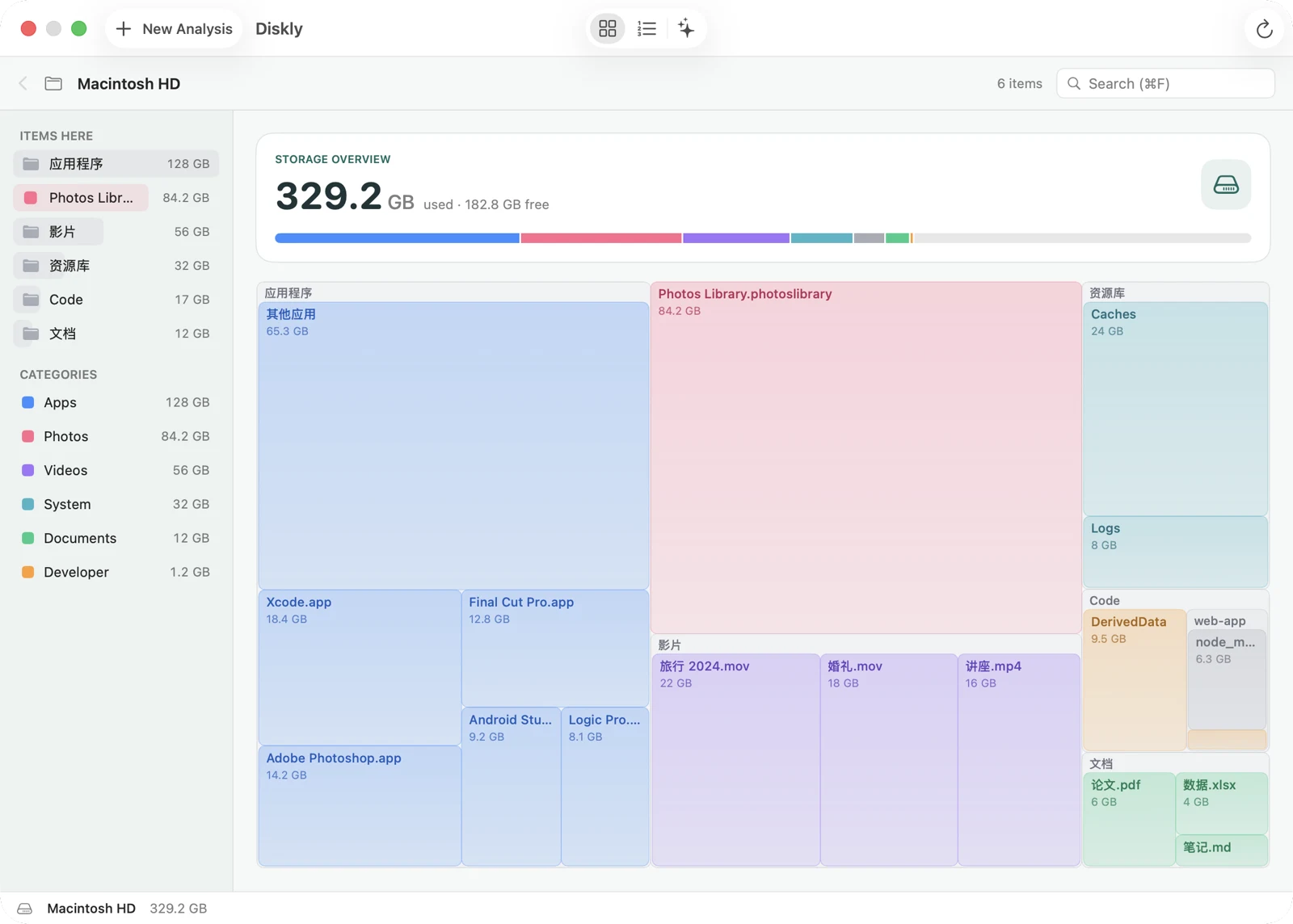
Bigger blocks mean more space. Open a folder to see what’s inside, without guessing from a long list of paths.
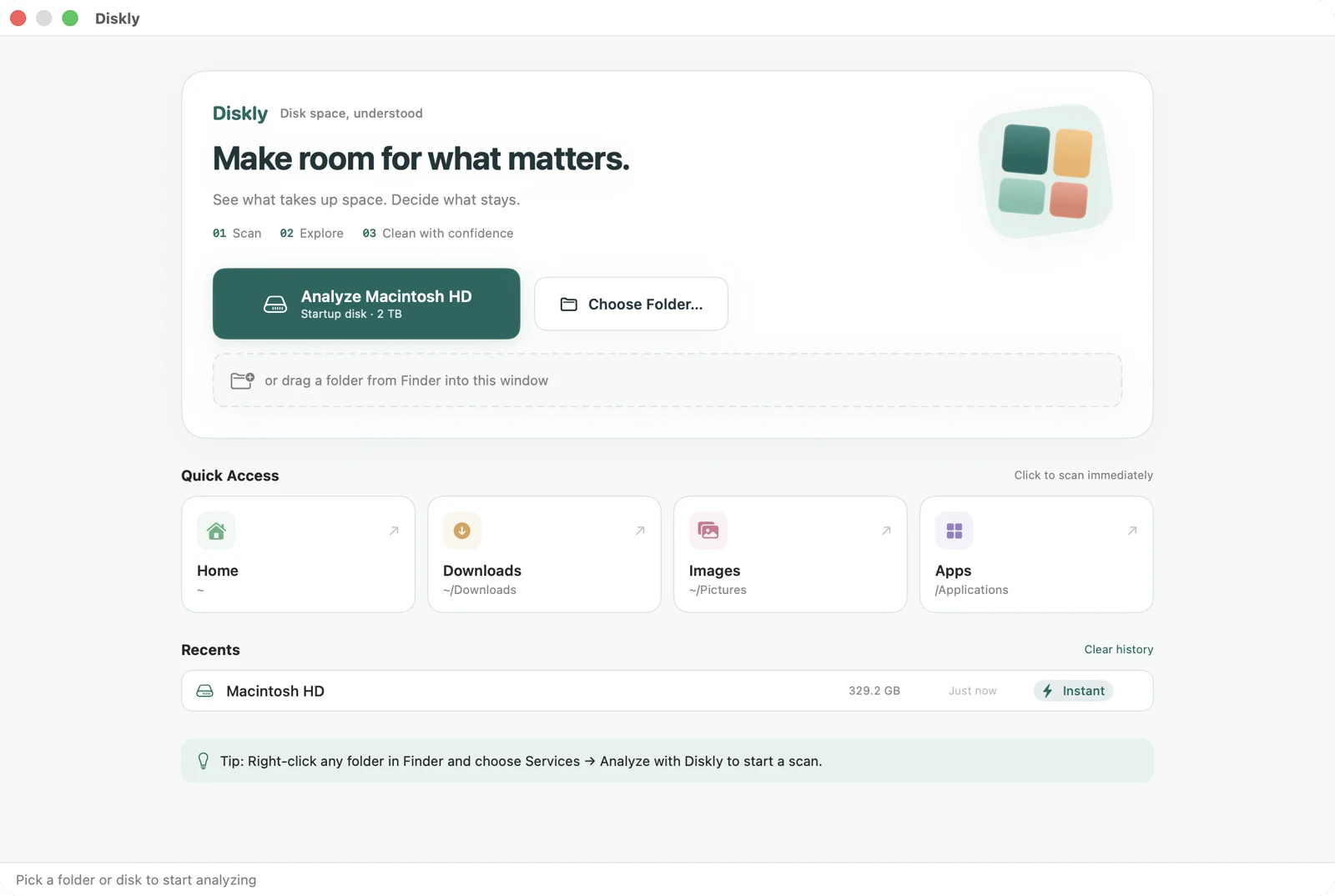
Drop a folder in, choose a disk, or return to a recent result.
A little more room for your Mac
Turn disk usage into a map you can read. Find large files, review cleanup suggestions, and make room for what matters.
No signup needed · See pricing
macOS 14+ · Apple Silicon & Intel
Native Mac app · Files scanned locally
See it for yourself
From your first scan to finding large files and reviewing cleanup suggestions. A tour of the actual app.
Chinese-language demo with sample data. Includes background music; plays when you choose.
Open video ↗The video could not be played. Try opening it directly.
Choose a disk or folder and see file counts, categories, and discoveries while scanning. Explore the space map, search by name, or filter the largest files by type, size, and modification date. Review the safe-to-delete and needs-review groups before moving your selection to Trash. File names and sizes are sample data; the video is not a scan benchmark.
From finding it to sorting it out
Start with the whole disk. Follow the space down to individual files, then decide what to keep.
Bigger blocks mean more space. Open a folder to see what’s inside, without guessing from a long list of paths.
Drop a folder in, choose a disk, or return to a recent result.
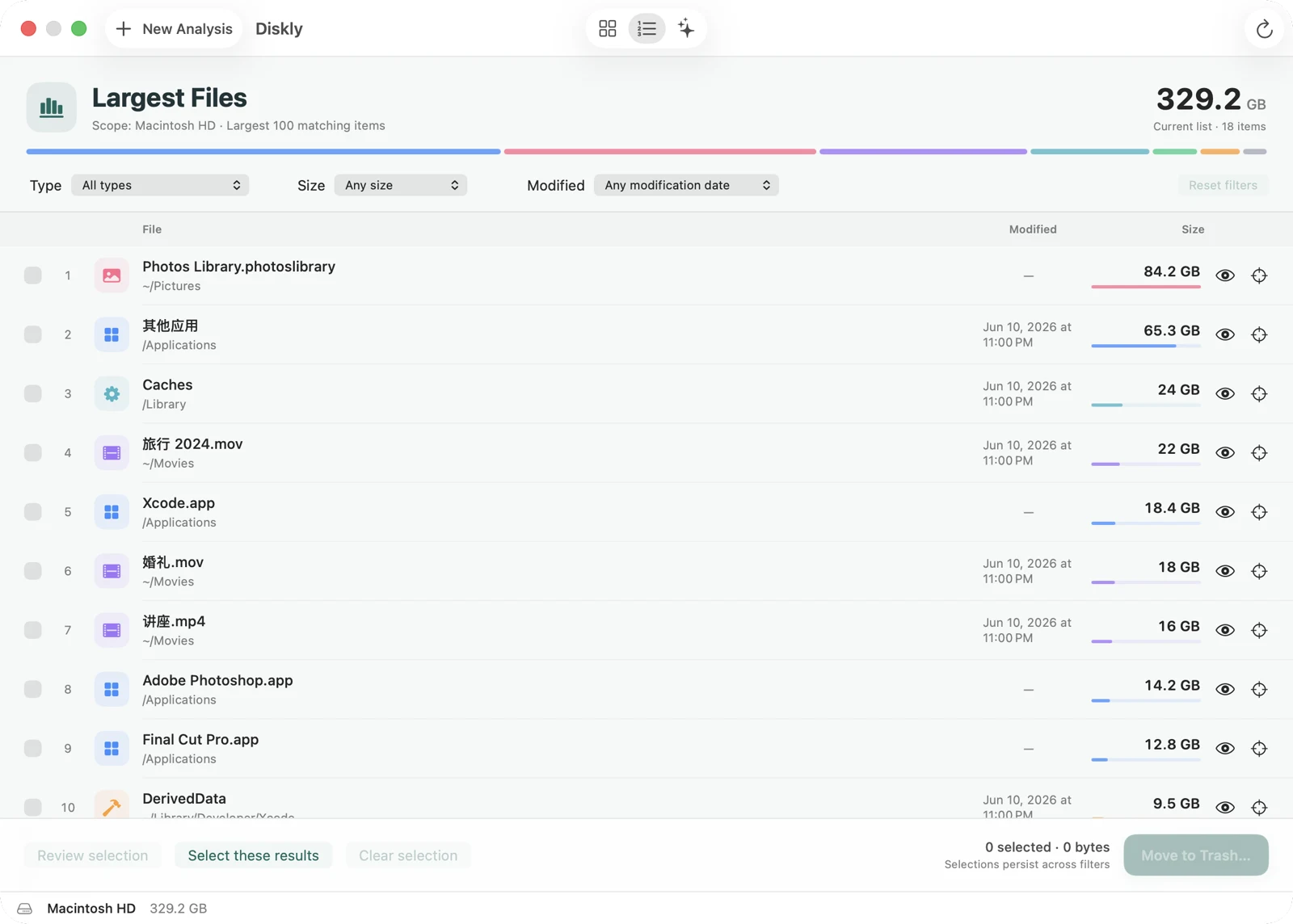
Search by name, or filter by type, size, and modification date. Check a selected file with Quick Look.
Combine type, size, and modification filters to narrow your review.
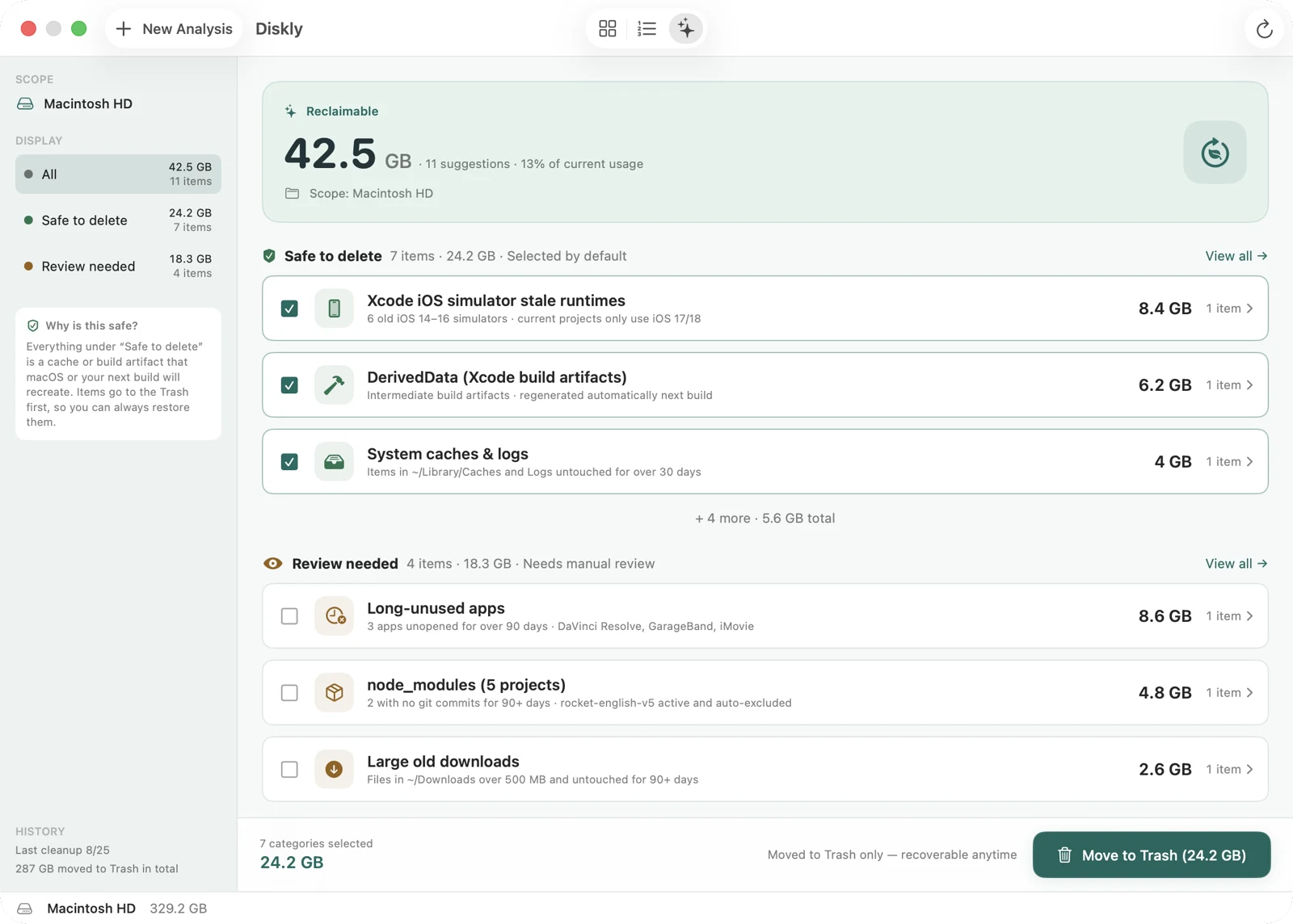
Review grouped suggestions for caches, build output, and older files. Check the details before moving your selection to Trash.
See the reason and file details. You decide what stays and what goes.
Clear about the numbers. Careful with your files.
Cloud-only files are counted by their local disk footprint. Available space can also depend on APFS shared data, snapshots, and Trash.
Suggestions are grouped into safe to delete and needs review. Check individual items before they go to Trash, where they can be restored until permanently deleted.
Scanning and file analysis run on your Mac. File contents, names, and paths are not uploaded. License checks and app updates connect to their respective services.
Scanning, the treemap, Largest Files and cleanup suggestions are free forever. Clean up to 1 GB for free, then one purchase unlocks everything.
Early bird · one-time purchase
Early-bird price for one month, through October 8, 2026; it goes up after that.
One-time purchase. No auto-renewal.
The free version moves up to 1 GB to the Trash in total; cleanup beyond that and Show in Finder require activation.
A few things to know before downloading.
brew install --cask mahui/tap/diskly installs the same .dmg; enter your license to activate. The Cask is updated with each new release.Open Diskly. Start with a clearer picture of your Mac.
Download free no time limitPrefer Homebrew?
brew install --cask mahui/tap/diskly